How to Edit Photos on iPhone in 60 Seconds
The fastest way to improve a photo on your iPhone is to edit in the same order every time: crop, exposure, highlights and shadows, white balance, color, then sharpen. A repeatable order turns editing from guesswork into a one-minute habit. This guide uses the built-in Photos app, and the same steps work in any editor.
Before you start
Open the photo, tap Edit, and swipe through the adjustment dials at the bottom. Each dial has a slider from −100 to +100. The values below are starting points, not rules: move each slider until the picture looks right to your eye. Edits in Photos are non-destructive, so tap Revert at any time to get back to the original.
The 60-second routine
| Step | What to do | Time |
|---|---|---|
| 1. Crop and straighten | Level the horizon and trim distractions | 10 s |
| 2. Exposure and contrast | Brighten or darken the overall photo | 10 s |
| 3. Highlights and shadows | Pull highlights down, lift shadows | 10 s |
| 4. White balance and color | Fix color cast, add a little vibrance | 15 s |
| 5. Sharpen and export | Light sharpening, compare to original, save | 15 s |
Step 1: Crop and straighten
Do this first because it changes what the rest of your edits need to fix. Tap the crop icon and drag the straighten dial until the horizon is level (usually within about five degrees). Pick a ratio: 4:5 for portrait posts, 3:2 or 16:9 for landscapes. Trim 5 to 15 percent from the border to remove clutter, and place the subject on a third line. Do not crop too hard, because you lose pixels and sharpness. If you often crop later, shoot a little wider than you need.
Step 2: Exposure and contrast
If the whole photo looks dark or flat, raise Exposure (try +10 to +30) and add a touch of Contrast. Avoid spending ten minutes on one slider; move on.
Step 3: Highlights and shadows
This is where phone photos improve most. Pull Highlights down (around −30) to bring back detail in bright skies, and lift Shadows (around +30) to open up faces and dark corners. If both are done well, the photo has more detail without looking fake.
Step 4: White balance and color
If the picture looks too yellow or blue, move Warmth (the temperature slider) by eye, staying within about ±10 of where it starts. Then add Vibrance (about +15) rather than raising Saturation, since vibrance is gentler on skin tones.
Step 5: Sharpen and compare
Add light Sharpness (about +25), then press and hold the photo to compare against the original. If the edit looks better, save it. If it looks overdone, back off. Done beats perfect.
Save time with a copy-and-paste edit
In recent versions of the Photos app you can copy the edits from one photo and paste them onto others. For a batch from one scene, such as a sunset or a day at the park, edit one photo well and paste the settings onto the rest.
Common mistakes
- Over-editing. A heavy edit is easy to spot. Keep sliders moderate.
- Skipping the compare step. Always look at the original.
- Editing before cropping. Crop first.
- Raising saturation too high. Use vibrance instead.
Edit less by shooting better
An edit cannot rescue every photo, so getting the shot right helps. Light matters most, and the golden hour guide explains when and where to find the best light. Composition counts too: see how leading lines give a photo a clear path, and practice with a 30-day photography challenge or a photo scavenger hunt.
Where ShotCraft Field Cards fits, and what is a separate add-on
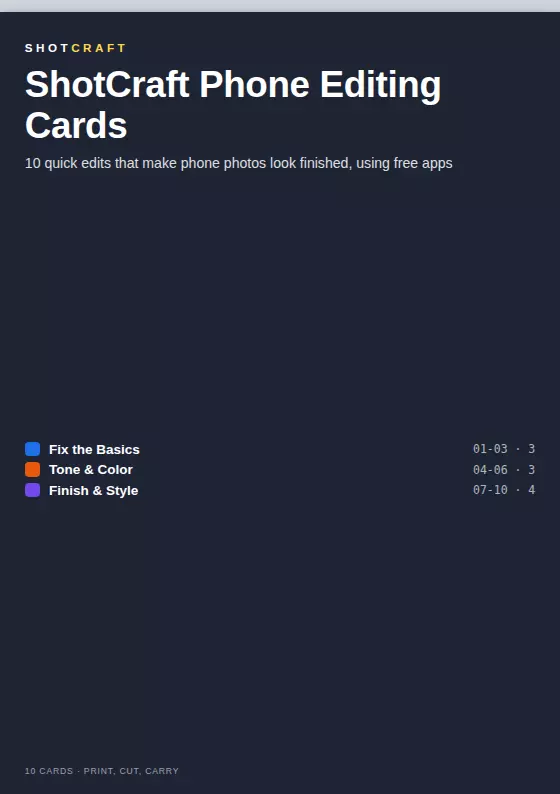
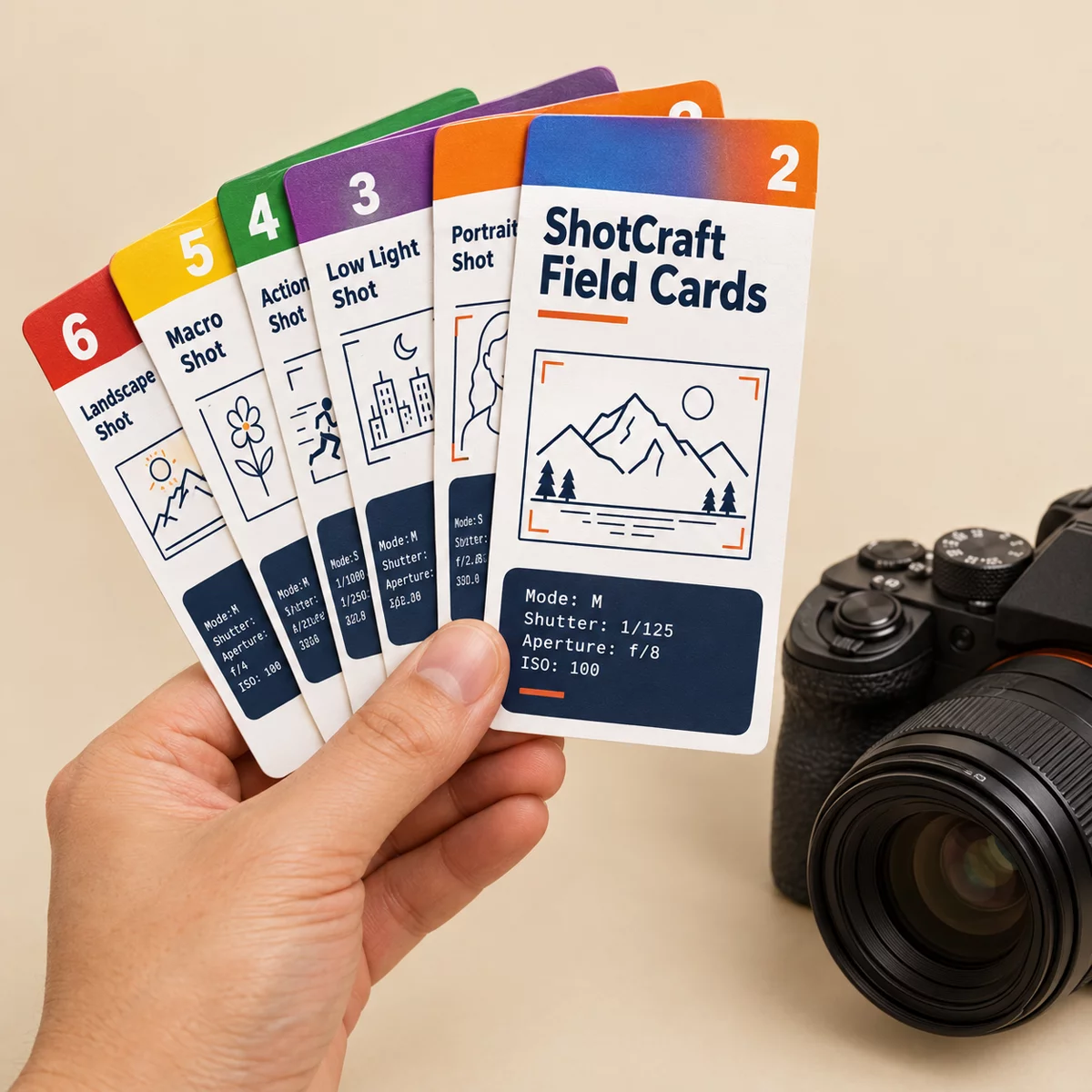
The main ShotCraft set teaches the shooting side with 44 printable cards, a Quick Settings Sheet and a Toolkit web app, so your photos arrive in the edit already well exposed and well framed. ShotCraft also has a separate paid add-on called Phone Editing Cards: 10 cards covering crop and straighten, exposure and contrast, highlights and shadows, white balance, color by channel, sharpening and noise, portrait polish, dramatic skies, black and white, and a 60-Second Edit card with exact slider values. It is offered during checkout and is not part of the main set. The routine in this article follows the same order those cards use.